导图社区 Chart.js
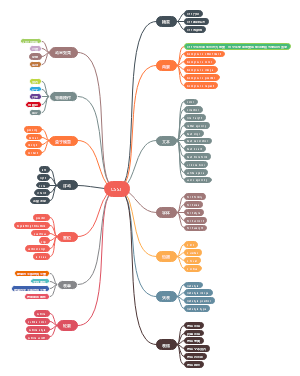
这是一篇关于Chart.js的思维导图,概述了Chart.js的使用方法,涵盖安装、基本使用以及多种图表类型。为使用Chart.js创建和配置各种类型的图表提供了清晰的指南。
编辑于2026-01-07 14:22:01Chart.js
安装
CDN
<script src="https://cdnjs.cloudflare.com/ajax/libs/Chart.js/4.4.1/chart.min.js"></script>
使用
初始化 Chart 类,并传入图表节点
图表显示位置
<canvas id="myChart" width="400" height="200"></canvas>
初始化
const ctx = document.getElementById('myChart'); // 获取节点
配置对象结构
const config = { type: 'line' data: {} options: {} plugins: [] }
type -- 指定图表的类型
data -- 图表中展示的数据集
options -- 一些可选项配置不同类型图表有不同配置
plugins -- 插件
字体
全局字体
Chart.defaults.font.size = 16;
局部字体
options: { plugins: { legend: { labels: { font: { size: 50 } } } }
填充
四边
options: { layout: { padding: 20 } }
指定方向
options: { layout: { padding: { left: 50 } } }
动画
成圈张力
 const config = { type: 'line', data: data, options: { animations: { tension: { duration: 1000, easing: 'linear', from: 1, to: 0, loop: true } }, scales: { y: { min: 0, max: 100 } } } };
隐藏与显示动画
 const config = { type: 'line', data: data, options: { transitions: { show: { animations: { x: { from: 0 }, y: { from: 0 } } }, hide: { animations: { x: { to: 0 }, y: { to: 0 } } } } } };
柱形图

bar
垂直柱形图
 <!DOCTYPE html> <html> <head> <meta charset="utf-8"> <title>菜鸟教程(runoob.com)</title> <script src="https://lf26-cdn-tos.bytecdntp.com/cdn/expire-1-M/Chart.js/3.7.1/chart.js"></script> </head> <body> <canvas id="myChart" width="400" height="200"></canvas> <script> const ctx = document.getElementById('myChart'); const labels = ['一月份', '二月份', '三月份','四月份', '五月份', '六月份', '七月份']; // 设置 X 轴上对应的标签 const data = { labels: labels, datasets: [{ label: '我的第一个柱形图', data: [65, 59, 80, 81, 56, 55, 40], backgroundColor: [ // 设置每个柱形图的背景颜色 'rgba(255, 99, 132, 0.2)', 'rgba(255, 159, 64, 0.2)', 'rgba(255, 205, 86, 0.2)', 'rgba(75, 192, 192, 0.2)', 'rgba(54, 162, 235, 0.2)', 'rgba(153, 102, 255, 0.2)', 'rgba(201, 203, 207, 0.2)' ], borderColor: [ //设置每个柱形图边框线条颜色 'rgb(255, 99, 132)', 'rgb(255, 159, 64)', 'rgb(255, 205, 86)', 'rgb(75, 192, 192)', 'rgb(54, 162, 235)', 'rgb(153, 102, 255)', 'rgb(201, 203, 207)' ], borderWidth: 1 // 设置线条宽度 }] }; const config = { type: 'bar', // 设置图表类型 data: data, // 设置数据集 options: { scales: { y: { beginAtZero: true // 设置 y 轴从 0 开始 } } }, }; const myChart = new Chart(ctx, config); </script> </body> </html>
水平柱形图
 <!DOCTYPE html> <html> <head> <meta charset="utf-8"> <title>菜鸟教程(runoob.com)</title> <script src="https://lf26-cdn-tos.bytecdntp.com/cdn/expire-1-M/Chart.js/3.7.1/chart.js"></script> </head> <body> <canvas id="myChart" width="400" height="200"></canvas> <script> const ctx = document.getElementById('myChart'); const labels = ['一月份', '二月份', '三月份','四月份', '五月份', '六月份', '七月份']; // 设置 X 轴上对应的标签 const data = { labels: labels, datasets: [{ axis: 'y', label: '我的第一个柱形图', data: [65, 59, 80, 81, 56, 55, 40], fill: false, backgroundColor: [ // 设置每个柱形图的背景颜色 'rgba(255, 99, 132, 0.2)', 'rgba(255, 159, 64, 0.2)', 'rgba(255, 205, 86, 0.2)', 'rgba(75, 192, 192, 0.2)', 'rgba(54, 162, 235, 0.2)', 'rgba(153, 102, 255, 0.2)', 'rgba(201, 203, 207, 0.2)' ], borderColor: [ //设置每个柱形图边框线条颜色 'rgb(255, 99, 132)', 'rgb(255, 159, 64)', 'rgb(255, 205, 86)', 'rgb(75, 192, 192)', 'rgb(54, 162, 235)', 'rgb(153, 102, 255)', 'rgb(201, 203, 207)' ], borderWidth: 1 // 设置线条宽度 }] }; const config = { type: 'bar', // 设置图表类型 data: data, // 设置数据集 options: { indexAxis: 'y', } }; const myChart = new Chart(ctx, config); </script> </body> </html>
气泡图

bubble
<!DOCTYPE html> <html> <head> <meta charset="utf-8"> <title>菜鸟教程(runoob.com)</title> <script src="https://lf26-cdn-tos.bytecdntp.com/cdn/expire-1-M/Chart.js/3.7.1/chart.js"></script> </head> <body> <canvas id="myChart" width="400" height="200"></canvas> <script> const ctx = document.getElementById('myChart'); const data = { datasets: [{ label: '气泡图实例', data: [{ x: 20, // X 轴 y: 30, // Y 轴 r: 15 // 气泡半径 }, { x: 30, y: 20, r: 20 }, { x: 40, y: 10, r: 10 }], backgroundColor: 'rgb(255, 99, 132)' }] }; const config = { type: 'bubble', // 设置图表类型 data: data, // 设置数据集 options: { }, }; const myChart = new Chart(ctx, config); </script> </body> </html>
环形图

doughnut
<!DOCTYPE html> <html> <head> <meta charset="utf-8"> <title>菜鸟教程(runoob.com)</title> <script src="https://lf26-cdn-tos.bytecdntp.com/cdn/expire-1-M/Chart.js/3.7.1/chart.js"></script> </head> <body> <canvas id="myChart" width="400" height="400"></canvas> <script> const ctx = document.getElementById('myChart'); const data = { labels: [ 'Red', 'Blue', 'Yellow' ], datasets: [{ label: '环形图实例', data: [300, 50, 100], backgroundColor: [ 'rgb(255, 99, 132)', 'rgb(54, 162, 235)', 'rgb(255, 205, 86)' ], hoverOffset: 4 }] }; const config = { type: 'doughnut', data: data, options: { responsive: true, // 设置图表为响应式,根据屏幕窗口变化而变化 maintainAspectRatio: false,// 保持图表原有比例 scales: { yAxes: [{ ticks: { beginAtZero:true } }] } } }; const myChart = new Chart(ctx, config); </script> </body> </html>
饼图

pie
<!DOCTYPE html> <html> <head> <meta charset="utf-8"> <title>菜鸟教程(runoob.com)</title> <script src="https://lf26-cdn-tos.bytecdntp.com/cdn/expire-1-M/Chart.js/3.7.1/chart.js"></script> </head> <body> <canvas id="myChart" width="400" height="400"></canvas> <script> const ctx = document.getElementById('myChart'); const data = { labels: [ 'Red', 'Blue', 'Yellow' ], datasets: [{ label: '饼图实例', data: [300, 50, 100], backgroundColor: [ 'rgb(255, 99, 132)', 'rgb(54, 162, 235)', 'rgb(255, 205, 86)' ], hoverOffset: 4 }] }; const config = { type: 'pie', data: data, options: { responsive: true, // 设置图表为响应式,根据屏幕窗口变化而变化 maintainAspectRatio: false,// 保持图表原有比例 scales: { yAxes: [{ ticks: { beginAtZero:true } }] } } }; const myChart = new Chart(ctx, config); </script> </body> </html>
折线图

line
<!DOCTYPE html> <html> <head> <meta charset="utf-8"> <title>菜鸟教程(runoob.com)</title> <script src="https://lf26-cdn-tos.bytecdntp.com/cdn/expire-1-M/Chart.js/3.7.1/chart.js"></script> </head> <body> <canvas id="myChart" width="400" height="200"></canvas> <script> const ctx = document.getElementById('myChart'); const labels = ['一月份', '二月份', '三月份','四月份', '五月份', '六月份', '七月份']; // 设置 X 轴上对应的标签 const data = { labels: labels, datasets: [{ label: '我的第一个折线图', data: [65, 59, 80, 81, 56, 55, 40], fill: false, borderColor: 'rgb(75, 192, 192)', // 设置线的颜色 tension: 0.1 }] }; const config = { type: 'line', // 设置图表类型 data: data, }; const myChart = new Chart(ctx, config); </script> </body> </html>
混合图

scatter
<!DOCTYPE html> <html> <head> <meta charset="utf-8"> <title>菜鸟教程(runoob.com)</title> <script src="https://lf26-cdn-tos.bytecdntp.com/cdn/expire-1-M/Chart.js/3.7.1/chart.js"></script> </head> <body> <canvas id="myChart" width="400" height="400"></canvas> <script> const ctx = document.getElementById('myChart'); const data = { labels: [ '一月份', '二月份', '三月份', '四月份' ], datasets: [{ type: 'bar', label: '柱形图数据集', data: [45, 49,52, 48], borderColor: 'rgb(255, 99, 132)', backgroundColor: 'rgba(255, 99, 132, 0.2)' }, { type: 'line', label: '折线图数据集', data: [50, 40, 45, 49], fill: false, borderColor: 'rgb(54, 162, 235)' }] }; const config = { type: 'scatter', data: data, options: { responsive: true, // 设置图表为响应式,根据屏幕窗口变化而变化 maintainAspectRatio: false,// 保持图表原有比例 scales: { y: { beginAtZero: true } } } }; const myChart = new Chart(ctx, config); </script> </body> </html>
极地图

polarArea
<!DOCTYPE html> <html> <head> <meta charset="utf-8"> <title>菜鸟教程(runoob.com)</title> <script src="https://lf26-cdn-tos.bytecdntp.com/cdn/expire-1-M/Chart.js/3.7.1/chart.js"></script> </head> <body> <canvas id="myChart" width="400" height="400"></canvas> <script> const ctx = document.getElementById('myChart'); const data = { labels: [ 'Red', 'Green', 'Yellow', 'Grey', 'Blue' ], datasets: [{ label: '极地图实例', data: [11, 16, 7, 3, 14], backgroundColor: [ 'rgb(255, 99, 132)', 'rgb(75, 192, 192)', 'rgb(255, 205, 86)', 'rgb(201, 203, 207)', 'rgb(54, 162, 235)' ] }] }; const config = { type: 'polarArea', data: data, options: { responsive: true, // 设置图表为响应式,根据屏幕窗口变化而变化 maintainAspectRatio: false,// 保持图表原有比例 } }; const myChart = new Chart(ctx, config); </script> </body> </html>
雷达图

radar
<!DOCTYPE html> <html> <head> <meta charset="utf-8"> <title>菜鸟教程(runoob.com)</title> <script src="https://lf26-cdn-tos.bytecdntp.com/cdn/expire-1-M/Chart.js/3.7.1/chart.js"></script> </head> <body> <canvas id="myChart" width="400" height="400"></canvas> <script> const ctx = document.getElementById('myChart'); const data = { labels: [ 'Eating', 'Drinking', 'Sleeping', 'Designing', 'Coding', 'Cycling', 'Running' ], datasets: [{ label: '第一个数据集', data: [65, 59, 90, 81, 56, 55, 40], fill: true, backgroundColor: 'rgba(255, 99, 132, 0.2)', borderColor: 'rgb(255, 99, 132)', pointBackgroundColor: 'rgb(255, 99, 132)', pointBorderColor: '#fff', pointHoverBackgroundColor: '#fff', pointHoverBorderColor: 'rgb(255, 99, 132)' }, { label: '第二个数据集', data: [28, 48, 40, 19, 96, 27, 100], fill: true, backgroundColor: 'rgba(54, 162, 235, 0.2)', borderColor: 'rgb(54, 162, 235)', pointBackgroundColor: 'rgb(54, 162, 235)', pointBorderColor: '#fff', pointHoverBackgroundColor: '#fff', pointHoverBorderColor: 'rgb(54, 162, 235)' }] }; const config = { type: 'radar', data: data, options: { responsive: true, // 设置图表为响应式,根据屏幕窗口变化而变化 maintainAspectRatio: false,// 保持图表原有比例 elements: { line: { borderWidth: 3 // 设置线条宽度 } } } }; const myChart = new Chart(ctx, config); </script> </body> </html>
主散点

scatter
<!DOCTYPE html> <html> <head> <meta charset="utf-8"> <title>菜鸟教程(runoob.com)</title> <script src="https://lf26-cdn-tos.bytecdntp.com/cdn/expire-1-M/Chart.js/3.7.1/chart.js"></script> </head> <body> <canvas id="myChart" width="400" height="400"></canvas> <script> const ctx = document.getElementById('myChart'); const data = { datasets: [{ label: '散点图实例', data: [{ x: -10, y: 0 }, { x: 0, y: 10 }, { x: 10, y: 5 }, { x: 0.5, y: 5.5 }], backgroundColor: 'rgb(255, 99, 132)' }], }; const config = { type: 'scatter', data: data, options: { responsive: true, // 设置图表为响应式,根据屏幕窗口变化而变化 maintainAspectRatio: false,// 保持图表原有比例 scales: { x: { type: 'linear', position: 'bottom' } } } }; const myChart = new Chart(ctx, config); </script> </body> </html>