导图社区 LoadRunner思维导图
LoadRunner三大模块介绍及其基础知识向导。
编辑于2020-08-18 17:15:36LR
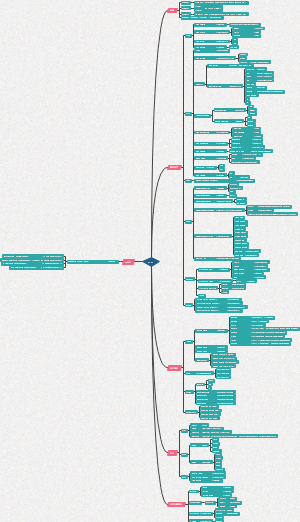
Vugen
1: Building a Vuser Script
1.Creating Blank Vuser Script
Web - HTTP/HTML click Create
2.Recording a Vuser script
3.Viewing the Vuser script
Solution Explorer
Step Navigator
Editor
2: Preparing Your Script for Replay
1.创建correlate: 有些服务器为每个会话分配唯一ID导致Replay失败
3: Replaying Your Vuser Script
1.Vuser's Runtime Settings:
1.Run Logic: Number of iterations to 2
2.Pacing: Start new iteration at Random intervals, every 60.000 to 90.000 second(s)
3.Log: Extended log and enable Parameter substitution
4.Think Time: Ignore think time
2.Run Vuser Script
Replay button
3.view replay information
Replay Summary
Output Pane
Replay log
4: Preparing a Vuser Script for Load Testing
1.measure duration of business process: transaction
lr_start_transaction
lr_end_transaction
2.emulate multiple users: parameterize
seatPref: Aisle, Window, or None
Update value on: Each iteration
3.verify Web page content
Text check: web_reg_find
Image check
4.debugging information:
lr_output_message
5.replay succeed?
Internet Protocol > Preferences > Enable image and text check
Controller
5: Creating a Load Testing Scenario
1.start the Controller
Manual Scenario
Goal-Oriented Scenario
子主题
2.Controller at a Glance
Scenario Groups pane
Service Level Agreement pane
Scenario Schedule pane
3.generate a load
Load Generators button
select localhost and click Connect
4.emulate real load behavior
Scenario Schedule
Schedule by: Scenario
Run Mode: Real-world schedule
Initialize all Vusers simultaneously
a gradual start for the Vusers
In the Start X Vusers box, enter 8, and select the second option— 2 Vusers every 00:00:30 (30 seconds).
Schedule a gradual closure
Stop Vusers, 2 Vusers every 00:00:30
emulate different types of users
Runtime Settings
1.Run Logic: Number of iterations to 2
2.Pacing: Start new iteration at Random intervals, every 60.000 to 90.000 second(s)
3.Log: Always send messages, Extended log, and select Data returned by server
4.Think Time: Replay think time, Use random percentage of recorded think time. a minimum of 50% and a maximum of 150%
5.Speed Simulation:
6.Browser Emulation:
7.Content Check:
monitor the system under load
Windows Resources monitor
determine CPU, disk, and memory resources.
Add Measurements
Monitored Server Machines
6: Running the Load Test
1. run a load test scenario
Run
Start Scenario
2. monitor the application under load
1. Running Vusers - Whole Scenario graph (a)
显示在给定时间运行的Vuser数量。
2. Transaction Response Time - Whole Scenario graph (b)
显示完成每笔交易所需的时间。
3. Hits per Second - Whole Scenario graph (c)
显示方案运行的每一秒内Vuser对Web服务器的点击次数(HTTP请求)。
4. Windows Resources graph (d)
显示方案期间测量的Windows资源。
5. Throughput
显示Vuser在任何给定的秒内从服务器接收的数据量
3. watch a Vuser running in real time
4. view a summary of Vuser actions
Show Vuser Log
5. increase the load during the test
6. application encounter errors
View > Show Output. You can sort the message by type, such as Warnings or Errors
7. system perform well under load
查看事务响应时间并确定响应时间是否在可接受的范围内
Analysis
7: Analyzing Your Scenario
1. reach my goals?
(Service Level Agreement)
Controller中运行方案之前
Analysis本身之后定义SLA
2. define an SLA
3. view a summary of performance
4. graphically view performance
5. server perform well
6. pinpoint the source of the problem